How to Find and Cancel Unused Subscriptions: Save $200+ a Year in Minutes


If you’re like us, you’re likely paying for at least one subscription you’ve forgotten about — and maybe several. A streaming service you signed up for to watch one show or game. A free trial that quietly converted three weeks ago. A meditation app you barely remember. Subscriptions are easy to start and surprisingly hard to stop.
The reason you likely have so many is by design. Most platforms make signing up a single tap and bury the cancellation option somewhere you’re unlikely to find without help. The good news: once you know where the cancel buttons live, it only takes a few minutes to stop multiple subscriptions.
This guide walks through how to find the subscriptions you’re paying for and how to decide which ones are worth keeping. Then we’ll give you step-by-step instructions for canceling on a bunch of major platforms — Netflix, PayPal, Apple, Google, Amazon, gym memberships and more. We’ll also cover what to do when a recurring charge keeps coming back and tell you the easiest apps to use if you’d rather have someone else handle the cancellation process for you. Let’s get started.
Save more. Stress less. Sign up for The Penny Hoarder’s free newsletter today.
Step 1: Find Every Subscription You’re Paying For
You cannot cancel what you cannot see. Most people underestimate their subscription total because the charges are spread across multiple platforms — App Store, Google Play, PayPal, the credit card directly — and rarely show up on a single statement.
Run through these five places once and you will catch almost every recurring charge:
1. Audit your bank and credit card statements
Pull up the last two or three months of statements and scan for recurring charges in the $4.99 to $19.99 range — that is the sweet spot for most subscriptions. Look for any charge that repeats on the same date each month, even small ones.
A common mistake is only checking one card. If you have multiple credit cards, a debit card, and PayPal, check all of them.
2. Check your Apple subscriptions (iPhone or iPad)
On an iPhone or iPad, open Settings, tap your name at the top, and tap Subscriptions. You’ll see every active subscription billed through Apple, plus expired ones as you scroll down.
3. Check your Google Play subscriptions (Android)
Open the Google Play Store, tap your profile picture, then Payments & subscriptions, then Subscriptions. Every active and inactive subscription billed through Google Play is listed there.
4. Check your PayPal recurring payments
Log in to PayPal on a desktop browser, click the gear icon for Settings, then Payments, then Automatic payments. PayPal often hosts recurring charges you would not expect — many merchants route their billing through PayPal even if you used a card on file.
5. Check your Amazon subscriptions
Sign in to Amazon and head to Your Account, then Memberships and subscriptions. This catches Prime, Audible, Kindle Unlimited, Subscribe & Save items, and any third-party subscription billed through Amazon.
Write everything down in one place. A simple list with the service name, monthly cost, and last time you used it should be enough to make the next step easy.

Step 2: Decide Which Subscriptions to Keep vs. Cancel
Once you can see the full list, sorting it should go fast. The rule of thumb most people land on is the cost-per-use test: divide the monthly cost by the number of times you actually used it last month. A $15 streaming service you watched 10 nights costs $1.50 a session. A $15 service you opened twice costs $7.50 a session.
Two more useful filters:
- The 90-day rule. If you have not used a subscription in the last 90 days, cancel it. You can almost always re-subscribe later if you actually miss it.
- The free trial check. Any service still in its free trial window should either be canceled before the trial ends or marked as a deliberate keep — if you’re still trying it out, set a reminder so you don’t auto-renew and are stuck with the charge.
Be honest about overlap, too. Are there streaming services that carry enough of the same programming that you could do without one of them?
Ask the rest of your household to do their own audit and check your list against theirs. Look for any duplicates and cancel one of them to avoid double paying for the same service.
Step 3: How to Cancel Subscriptions on Every Major Platform
Here is the platform-by-platform playbook. Steps and menu names can shift slightly with app updates, so if a button isn’t where it should be, look for the closest equivalent.
How to cancel Netflix, Hulu, Disney+ and Max
Streaming services almost all follow the same general flow — Sign into your account on the web, open Account, find the cancel link.
- Netflix: Sign into your account at netflix.com/login → go to Manage your membership and click Cancel → click Finish Cancellation. You’ll continue to have access to Netflix until the end of your current billing cycle.
- Hulu: Sign into your account at hulu.com/web/login/enter-email → under Subscription, select Cancel → you’ll get the option to pause your subscription; click Continue to Cancel. You’ll continue to have access to Hulu until the end of your current billing cycle.
- Disney+: Sign into your account at disneyplus.com → select Profile, then Account → under Subscription, choose your Disney+ subscription and select Cancel Subscription. You’ll continue to have access to Disney+ until the end of your current subscription.
- HBO Max: Sign into your account at HBOMax.com/subscription → choose Cancel Your Subscription.
A common gotcha: if you signed up for a streaming service or a bundled service through another platform, like Apple, Google, Amazon or your cable provider, you have to cancel through that billing platform, not the streaming service directly.
How to cancel PayPal subscriptions
There are two ways to remove subscriptions from your PayPal account:
To cancel automatic payments:
- Log in to PayPal and click the gear icon (Settings) in the top right.
- Click the Payments tab.
- Under Automatic payments, click Subscriptions and save businesses or Automatic Payments
- Select the merchant you want to cancel.
- Click Cancel and confirm when prompted.
To remove PayPal as a payment method:
- Tap your profile photo, then tap Subscriptions, Linked Businesses or Pay Bills, depending on your version.
- Tap the merchant.
- Tap Account or Manage, then Stop Paying with PayPal.
- Tap Unlink to confirm.
One important catch: canceling a PayPal billing agreement only stops PayPal from being charged. Your account with the merchant — like a streaming service or news site — is usually still active, and the merchant may try to switch you to another payment method on file. To fully cancel, you may need to cancel the subscription with the merchant first, then remove PayPal as a payment method.
How to cancel Apple subscriptions (iPhone, iPad, Mac)
Apple has the cleanest cancellation flow of any major platform — every subscription routed through your Apple ID lives in one place.
- On iPhone or iPad: Settings → tap your name → Subscriptions → tap the subscription → Cancel Subscription.
- On a Mac: App Store → click your name in the bottom-left → Account Settings → scroll to Subscriptions → click on the subscription → Cancel.
If a subscription is grayed out or shows “expiring” with a future date, it is already canceled and will end on that date.
How to cancel Google Play subscriptions
On an Android device: open the Google Play Store → tap your profile photo → Payments & subscriptions → Subscriptions → tap the subscription you want to cancel → tap Cancel subscription. Google will ask you to confirm and may offer to pause it instead.
On the web: visit play.google.com/store/account/subscriptions, sign in with your Google account, and click Manage next to the subscription.
How to cancel Amazon Prime and Amazon subscriptions
To cancel Prime: sign into your amazon.com account → click on your account (person icon) → tap on Prime Membership → Cancel Subscription. Amazon walks you through several screens designed to keep you, then offers a final confirm. If you cancel mid-month, your benefits typically continue until the end of the current paid period.
To cancel an Audible, Kindle Unlimited or other Amazon subscription: Your account → Memberships & Subscriptions → find the service → Manage → Cancel. Subscribe & Save items are managed under Your Account → Subscribe & Save Items.
How to cancel gym memberships and recurring services
Gyms, magazine subscriptions and other “real-world” recurring services are usually the hardest to cancel — many require a phone call, a written letter or an in-person visit. A few practical tips:
- Read the original contract or signup email. The cancellation method is almost always specified there.
- If a phone call is required, expect a retention pitch. You can ask politely, decline any offers and confirm the final cancellation date in writing.
- If they require a written letter, send it certified mail and keep the receipt. That is your proof.
- Watch the next two billing cycles. Some services bill one more time after a cancellation request — dispute it with your card issuer if it does.
Step 4: Stop Recurring Payments on Your Credit Card or Bank
If you cannot find a working cancel button, or a merchant keeps charging you after a cancellation, your card issuer is your last line of defense. You have the right to stop a recurring charge, even if the merchant still has your card on file.
- Call your card issuer. Ask them to block the merchant or stop authorizing the recurring charge. Most major issuers can do this.
- File a dispute. For unauthorized charges or charges after you canceled, file a formal dispute. Federal law gives you specific protections on credit card billing errors.
- Replace the card if needed. As a last resort, requesting a new card number forces any merchant to ask for your new card info to charge you. This is a nuclear option — you’ll need to update the new card info for any recurring charges you want to continue paying.
Even when you cancel through the merchant, it is worth a quick check on the next two statements to make sure the charge actually stopped.
Step 5: Use an App to Manage Your Subscriptions Going Forward
If the audit was overwhelming, the easiest fix is to put a tool in place so you do not have to do it from scratch again. The best expense tracking apps can scan your transactions, surface recurring charges, and in some cases cancel subscriptions for you. Offers and pricing may change, so verify the terms before you sign up.
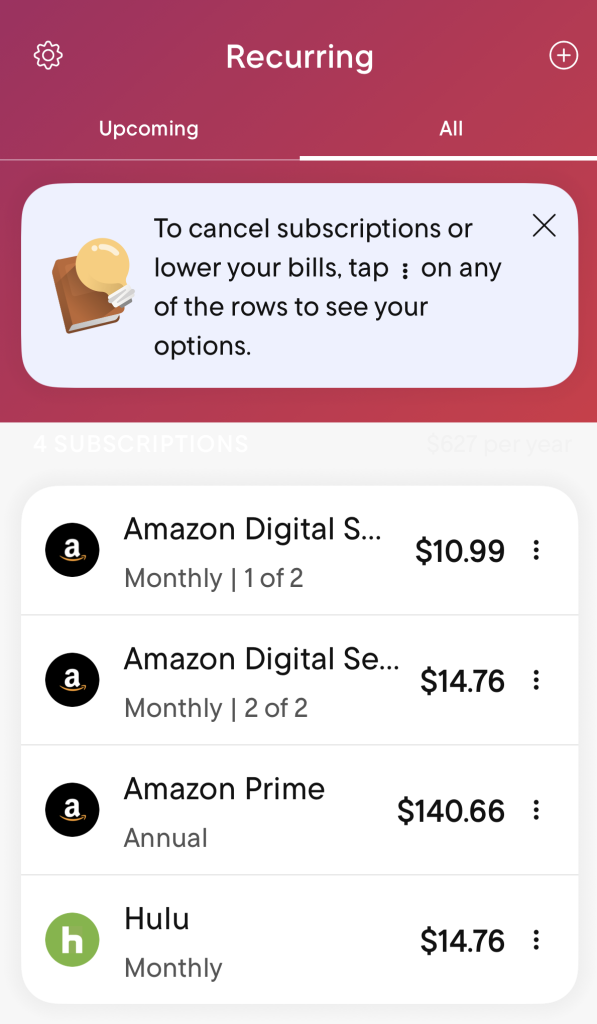
Rocket Money
Rocket Money links to your bank and credit card accounts, automatically detects recurring charges, and offers a one-click cancellation service for many providers — meaning Rocket Money’s team handles the cancellation on your behalf. The free tier shows your subscriptions; the paid Premium tier ($7 to $14 per month) unlocks the cancellation service.
Copilot Money
Copilot Money is a paid budgeting app ($13 per month or $95 per year) focused on spending categorization and trend analysis. Subscriptions are detected automatically and grouped together so you can see your monthly recurring total at a glance and get renewal alerts. Copilot Money doesn’t cancel for you, but the visibility alone can help you spot forgotten charges.
Other subscription tracker apps
There are several other apps that handle subscription tracking and cancellation, including Bobby, Hiatus and SortBilly.
Once you have the recurring charges under control, it is worth thinking about how subscriptions fit into the rest of your spending. Our guide to budget categories walks through where subscriptions usually live in a monthly budget and how to keep the total in check going forward.
How to Cancel a Free Trial Before You Are Charged
Free trials are subscriptions in disguise — most auto-convert to paid the moment the trial ends. If you started a trial you do not plan to keep, set a calendar reminder for two days before the trial ends and cancel through the same process you would use for the paid version.
For platform-specific guidance — including how to cancel an Amazon Prime free trial, a Fubo trial and other common offers — see our full guide on how to cancel a free trial. The walkthroughs there cover the exact menus and timing for each major service.
Final Verdict
Most people are quietly paying tens or even hundreds of dollars a month in subscriptions they would cancel if they saw the full list. But finding the charges can take some work.
Run the five-place audit once, sort what is left with the cost-per-use and 90-day rules, then put a tracker app in place so you only have to do the audit once a year. Most people find a few hundred dollars a year on the first pass.
If this audit is your first real pass at tracking your spending, our guide to budgeting for beginners is a good next step. The same instinct that got you to read this — what is actually going out each month? — is the foundation of every budgeting method.
Block off an hour this weekend and run the list. It could be the highest hourly rate you earn all month.
Frequently Asked Questions
There is no single place that catches every subscription because billing is often split across Apple, Google, PayPal, Amazon and debit/credit card charges. The fastest fix is to check those five places first, list everything you find, and then either keep the list updated or use a budgeting app with subscription tracking, like Rocket Money or Copilot, to do the monitoring for you.
Try three things in order. First, check the original signup email or the merchant’s help page for the official cancellation method — some require a phone call or a specific link. Second, contact the merchant in writing and keep a copy. Third, if the charges continue, call your card issuer and request a stop on the recurring authorization, or file a billing dispute.
Usually yes, but not always immediately. Many subscriptions stay active until the end of the current billing cycle and then stop. A small number of services bill one more time after a cancellation request before stopping — check the next statement and dispute the charge with your card issuer if it shows up.
It depends on how many subscriptions you have. If you are paying for one or two services and you are sure of both, a tracker is overkill. If you regularly find forgotten charges or use 10+ apps with monthly billing, a tracker can pay for itself in a single canceled subscription. Results vary; verify pricing before you sign up.
Sometimes. Many platforms — Apple, Google, Amazon and several streaming services — will refund a recent charge if you contact support and explain you did not intend to renew. The closer to the charge date, the better the odds. Outside of that window, the merchant is not required to refund, but it is always worth asking.
Pull up your last three months of bank and credit card statements and scan for charges in the $4.99 to $19.99 range that repeat on the same date each month. That single sweep catches the majority of forgotten subscriptions for most people.
Tiffany Wendeln Connors is senior managing editor at The Penny Hoarder and a Certified Educator in Personal Finance.